






Effirox Bluetooth Label APP User Manual
The overall steps:download the app—-Log in to the computer web-based software—-create template—-log in the app by the same account—-update the label(The templates you create will be automatically synchronized to the app)
1.APP installation guide
1.1 The Android app
Method 1: scan the QR code to download
Please use your mobile browser and scan the QR code below to easily download the APP.
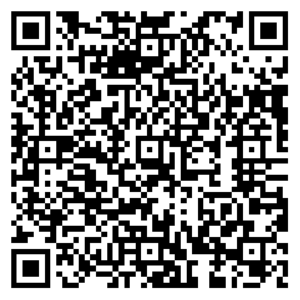
Method 2: Download the app by the below link
Copy the following link to your mobile browser to download.
https://drive.google.com/file/d/1Cvoq4ulWhzVaJDReWXzIYTAU2qgLok0q/view?usp=sharing
1.2 iPhone app download
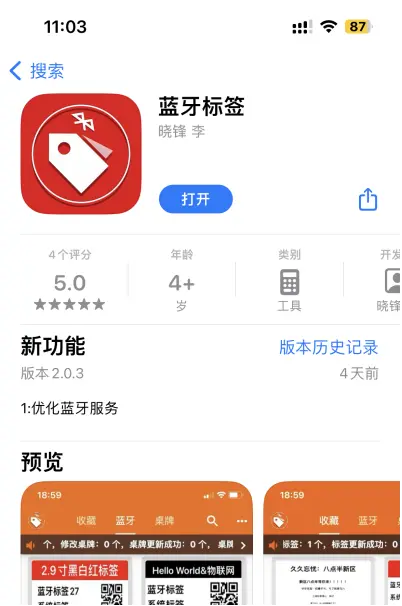
Search “lanyabiaoqian” in the APP Store, click to download.
1.3 Functional requirements for running the APP
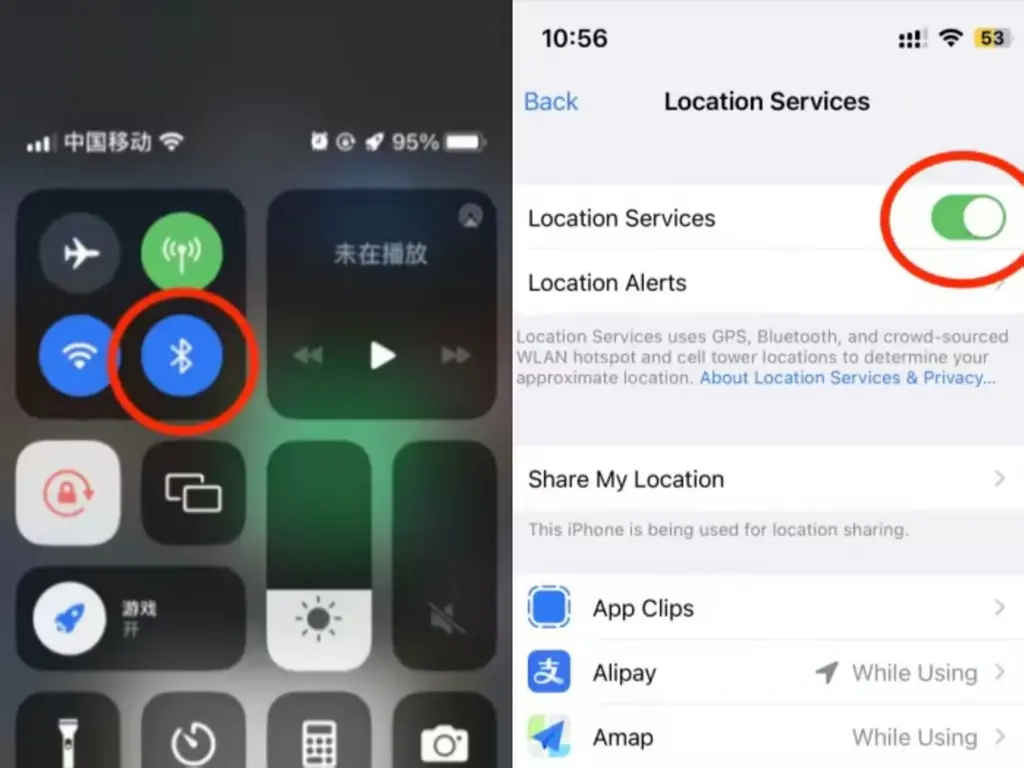
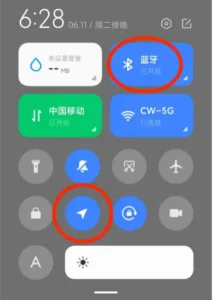
When running the APP, you need to open the Bluetooth and location function of the mobile phone. As shown in the figure below.
The iOS phone: Bluetooth and location location.
Android phone: Bluetooth and location function.
2. APP operation manual
–Initial steps: Download the APP according to the above guidelines to ensure that the Bluetooth and location function are enabled.
–Automatic search: Log in with the account provided by the seller, the system will automatically search for nearby Bluetooth tags.
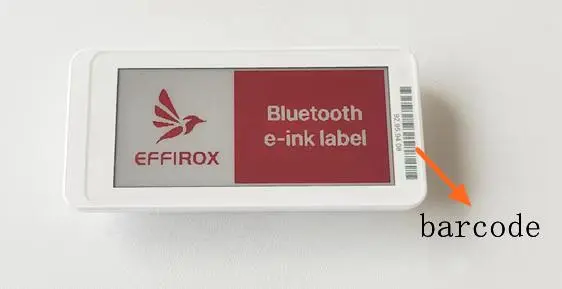
–Selected target: Select the tags you need to update from the list, each with a unique barcode number as an identity.
–Edit content: Click the “Edit” button, whether it is to modify the text or change the template.
–Confirm and screen casting: after completing editing, click “Back” and confirm, and then click “Display” to show your content immediately.
2.1 Login and search function details
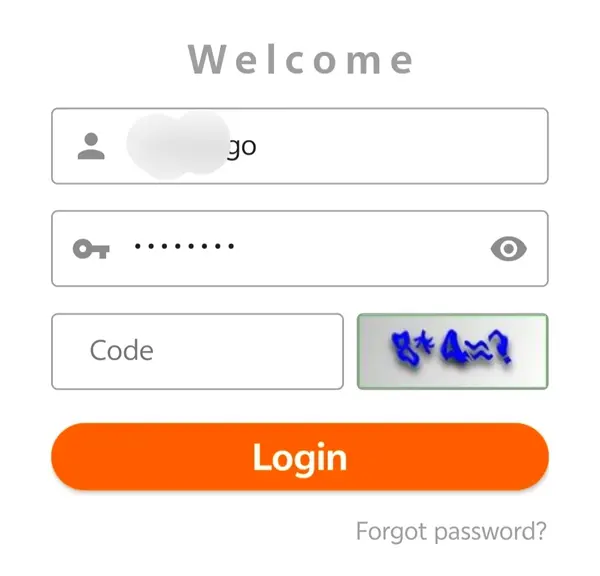
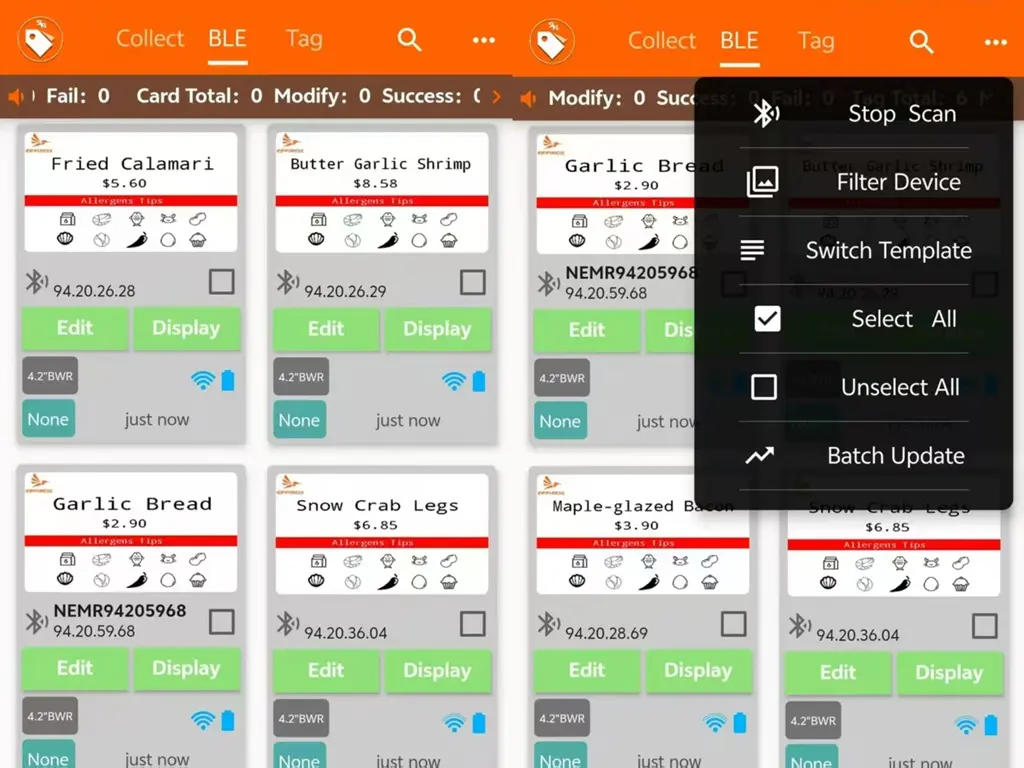
After logging into the APP, all Bluetooth tags in the range will be automatically searched.
From the “…” shortcut menu in the upper right corner of the interface, you can quickly access multiple practical functions.
This function can be used to “filter devices”, easily select the Bluetooth devices you need; support batch “switch template”, can apply the same template to multiple labels at one time, greatly improve the management efficiency; provide “all selected” and “batch update” options, to update all selected labels with one key.
2.2 Bluetooth tag search (two methods)
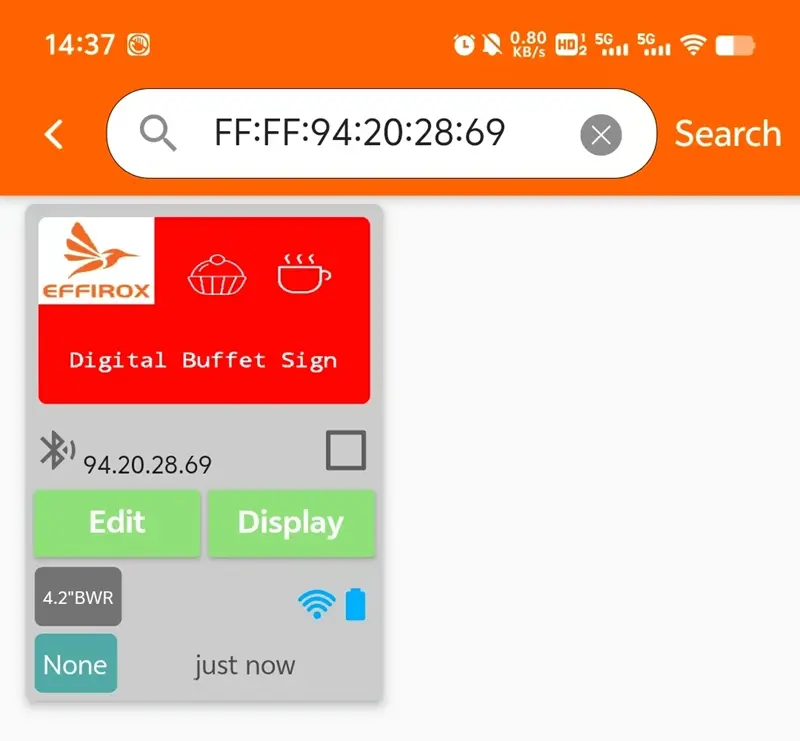
Manual input search: directly input the ID code of the label in the search box, the system will accurately locate and display the label information, so that the search becomes easy and accurate.
Barcode scanning search: Using the built-in barcode scanning function of the APP, the label information can be quickly identified and displayed only by simply scanning the bar code on the label.
2.3 Content editing and template switching function details
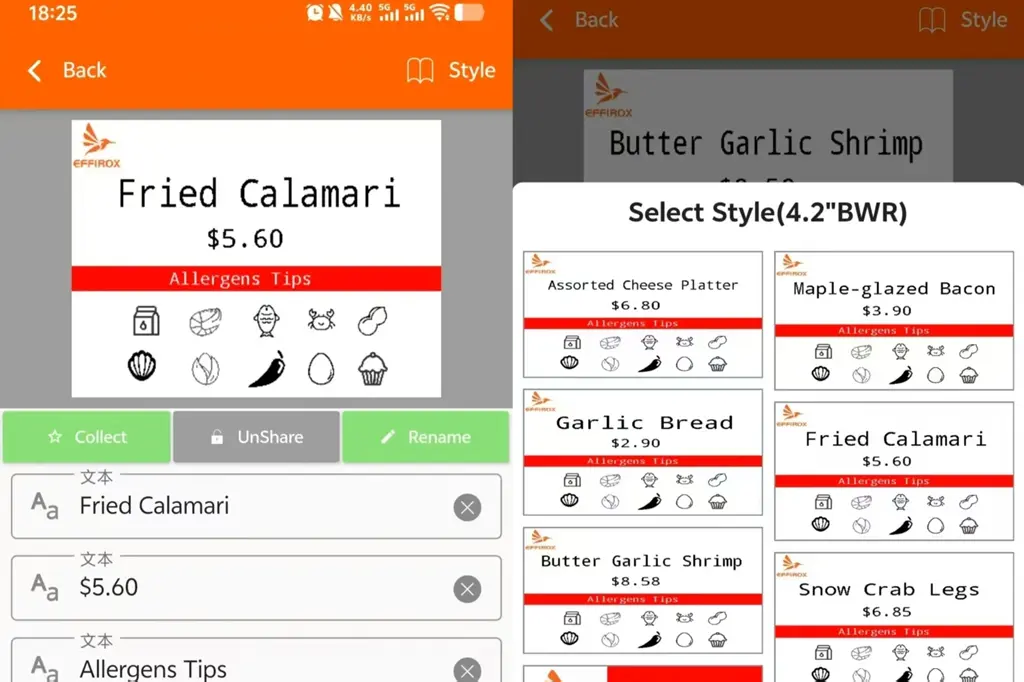
Click the “Edit” button to lead you to an intuitive content editing interface. The interface layout is as follows:
Picture preview: Located at the top of the editing interface, showing the preview effect of the current editing content, you can intuitively see the changes brought about by each modification during the editing process.
Content editing area: Follow the below the picture, showing the original content of the template, you can modify these content freely. The modified content will be immediately reflected in the image preview, so that you can keep abreast of the editing progress and effect.
Template switching function: if you need to replace a new template, click “Template” in the upper right corner of the interface. This operation will quickly bring up the template selection interface, which contains a variety of templates for you to choose from. After selecting the template, your content will automatically adapt to the format of the new template, without having to manually adjust it again, which greatly improves the editing efficiency.
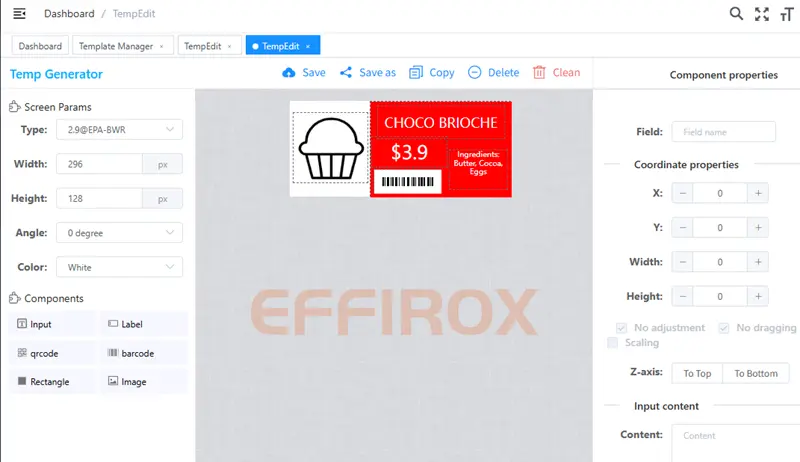
As for the design and production of templates, we provide a PC web version management system, you can use the same account to login https://bluetoothtag.effirox.com
The template designer in the PC web support text / picture / QR code / bar code content format, the templates you design on the web page will be automatically synchronized to the APP.
2.4 Display function(APP)
After editing the label content, you can synchronize the changes to the label in real time. Here are the detailed operation steps and status tips:
Select the template you need and return to the previous interface.
Light blue “None“: If the label is not in the edit or update status, this prompt indicates that everything is fine and that the editing or update can start at any time.
Pink “Edit”: When editing label content, this state will be in editing mode and has not been updated.
Yellow “Updating”: Click the “Screen cast” button, the APP will start sending the changed content to the label for refresh. The status prompt turns yellow, making it clear that the update is in progress.
Green “Success”: After the label successfully receives the new content and completes refreshing, the status prompt will turn green, which is the signal to continue to use the label.
Red “Fail”: If the update does not complete successfully due to some reason (such as a connection problem, label failure, etc.), the status prompt turns red.
2.5 Overview of the APP features
Private Mode: When private mode is enabled, your label content will be closely protected for you to edit and view only. Even if someone install the same APP, he can’t search for your tag to provide a solid guarantee for your data security.
Template Sharing: Encourage creative communication between users, and support sharing templates with friends or open to the special area. At the same time, you can also browse and download the template shared by others in the special area.
Word library Management: powerful word library management function, so that you can easily change fonts, select and download personalized font styles.
Label Renaming and Collection: In order to quickly identify and manage labels, we provide label renaming and collection features. You can give the label a familiar and memorable name and add it to your favorites to quickly find and associate it to the corresponding product or information when needed.
The APP continues to support firmware updates, an important driver of the continuous progress of devices and systems. It not only makes the device evolve and upgrade in performance and function, but also brings users more rich and diverse practical and interesting experiences.
3.Web-based software for PC
The main function of the web-based software is template management, including template creation, editing, and deletion. You need to use it with a PC browser.
Click on the https://bluetoothtag.effirox.com link to log in to the management system.
Click “Device Management” to “Template Management” new page, select the “screen type” relative to the label product, support the content format of text / picture / QR code / bar code, edit the template, and save it to “Template Management”;
Step 1: Open the specified web address in the browser.
Step 2: Log in to your exclusive account(same account as the app)
Step 3: Enter the template management area and click the “New” button.
Step 4: Select the template type to make sure it matches your label size and type.
Step 5: Add all kinds of components freely to create personalized templates.
Step 6: Save or save as, the templates will be automatically synchronized to the APP.
4. The Bluetooth connection problems encountered and the solution steps
Check whether GPS location is enabled: Note that since Android 6.0 version, Bluetooth search needs to be enabled at the same time. Make sure that your device has the GPS location function turned on.
Verify that the GPS permission is granted: Check that the application has obtained the necessary GPS permission to ensure that it can search for Bluetooth devices using the location service.
Confirm that the Bluetooth function is active: Make sure that your device’s Bluetooth function is on, which is a prerequisite for searching for Bluetooth tags.
Check whether the Bluetooth function permission is enabled: In addition to ensuring that the Bluetooth function itself is enabled, verify that the application is authorized to access the Bluetooth function for device search and connection.
Through the above steps, you should be able to solve the failure of searching the Bluetooth tags in the Bluetooth interface. If the problem persists, check the device for compatibility or contacting technical support for further assistance.